Every photographer eventually learns one hard truth: losing photos hurts more than losing gear. Cameras can be replaced, but your images are one of a kind. Maybe you have already had a memory card fail, or a hard drive click loudly one morning and refuse to mount. I have been there, and it is a terrible feeling when you realize a part of your library might be gone for good. The good news is that you can prevent almost all of these situations with a simple backup plan that works quietly in the background. In this post, we will walk through the easiest way to back up and protect your photo library using reliable tools and a method that keeps everything safe without adding extra stress to your workflow.
Why Backups Matter More Than You Think
Photography is one of those hobbies and professions where digital clutter builds up fast. A few years ago, many of us stored everything on a single external drive and hoped for the best. Today, we shoot thousands of RAW images, edit high resolution video clips, and move files between laptops, desktops, and cloud services. All of this means more chances for something to fail.
Drives wear out. Laptops get dropped. Files get deleted by accident. In rare cases, homes are damaged by fire or flooding. A strong backup plan protects your work against normal problems and the unexpected ones. When you think about the time, travel, and effort that goes into every image, it makes sense to treat your photo library like something valuable. A dependable backup system gives you peace of mind so you can focus on actually creating photos instead of worrying about losing them.
The 3-2-1 Photo Backup Rule Explained
The simplest and most trusted system is the 3-2-1 rule. It is easy to remember and works for beginners and professionals.
Three copies of your photos
This means your main copy plus two additional backups. If one fails, you still have two more.
Two different types of storage
For example, your main drive could be your editing computer or an external SSD. Your second copy might be a large external hard drive. Your third copy might be cloud storage or a network storage device.
One copy stored off-site
This protects your files from theft, fire, or other disasters. Off-site does not need to be complicated. Cloud services are perfect for this because they run automatically. If you prefer physical storage, you can rotate a drive between your home and another location.
Here is a simple version many photographers use:
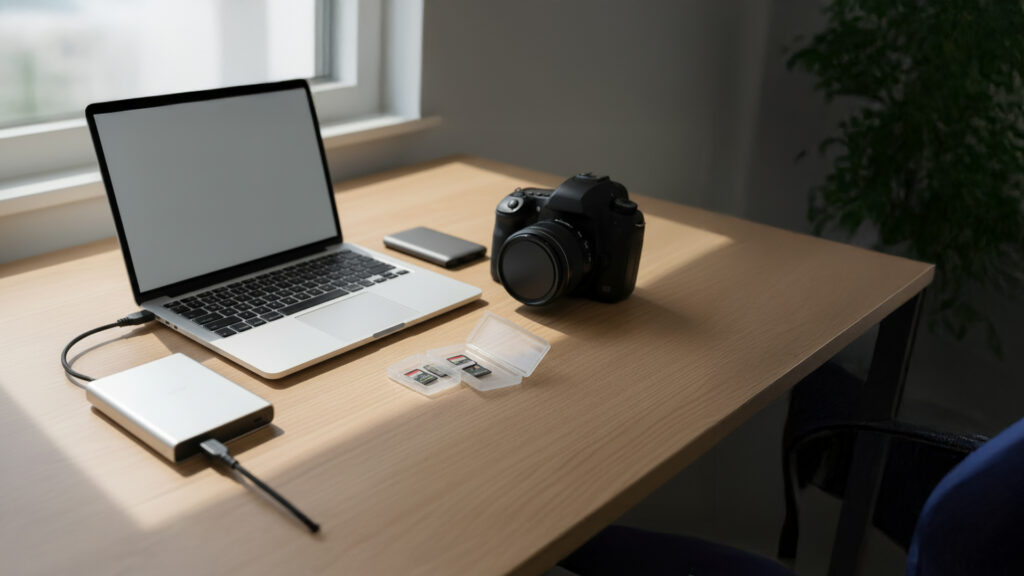
- Main library on your computer or primary external drive
- Local backup on a second external drive
- Off-site backup using a cloud service like Backblaze or Google Drive
This setup takes a little time to configure but runs smoothly once it is in place. Most of it can be automated, which makes it easier to maintain.
Setting Up Your Backup System
Step 1: Organize Your Files
A backup only works well if your files are organized in a predictable way. You do not need anything complicated. The goal is to create a folder structure that is easy to understand so you can locate images quickly and back them up without copying extra clutter.
Two common options:
By date:
2024
01 January
02 February
03 March
By project or location:
2024
Michigan Fall Colors
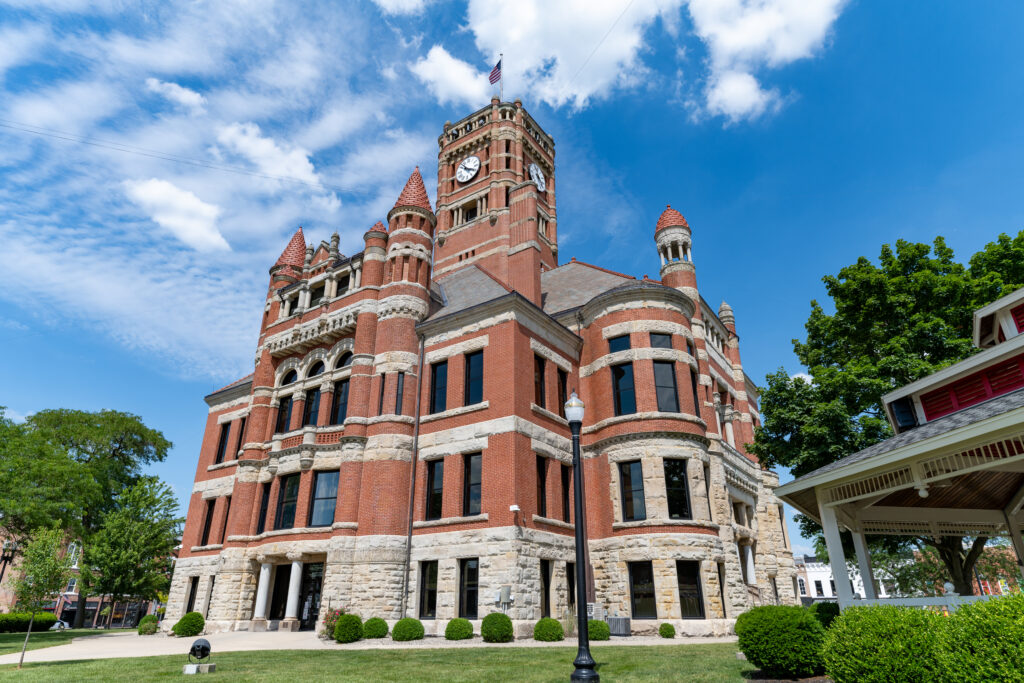
County Courthouse Series
Lake Superior Shoreline
Inside each folder, it helps to separate your RAW files, edited files, and final exports. This keeps everything cleaner and makes backups faster.
Step 2: Choose the Right Drives
Not all drives are equal, and different types serve different roles in your backup system.
External SSDs
Fast, portable, and great for editing. Brands like Samsung T7 or SanDisk Extreme are reliable. Use SSDs for your working library if you edit on the go or move between computers.
External HDDs
Large capacity at a low price. Perfect for backups and long-term storage. WD My Book and Seagate Expansion drives are common choices. These drives are slower but ideal for copies you rarely touch.
Network Attached Storage (NAS)
This is a box that holds multiple drives and connects to your network. Synology and QNAP are the most popular brands. NAS systems automatically mirror your files across multiple drives, which adds an extra layer of protection. They are more expensive, but great for photographers with very large libraries.
Step 3: Automate Your Backups
The number one reason backups fail is simple: people forget to run them. Automation removes this risk.
Here are tools that handle backups for you:
- Backblaze: continuous cloud backup for your whole computer
- Carbon Copy Cloner (Mac): scheduled drive clones
- Time Machine (Mac): automatic hourly backups
- Acronis True Image (Windows): system and file backups
- FreeFileSync (Windows and Mac): manual or scheduled syncing between drives
Pick one tool for your local drive and one for your cloud storage. Once you set the schedule, your backups happen quietly in the background.
Step 4: Use Cloud or NAS for Off-Site Protection
Off-site protection is the part most photographers miss, but it is the most important step. If all of your backups stay in one place, a single event could wipe out everything.
Cloud services
These are simple and affordable. Backblaze automatically backs up your whole machine. Google Drive, Dropbox, and Microsoft OneDrive let you sync specific folders. Most photographers use one of these for their third copy.
NAS with remote sync
If you use a Synology or QNAP NAS, you can mirror it to another NAS in a different building, or even to the cloud. This is more advanced, but very secure.
Whichever route you choose, the key idea is to have at least one copy of your library stored somewhere other than your home.
Backblaze Backup Guide for Photographers
https://www.backblaze.com/blog/photography-backup-guide/
Common Mistakes to Avoid
Even a good system can fail if it is not used correctly. Here are the problems photographers run into most often.
Only keeping one copy of files
A single drive is not a backup. If that drive fails, your work is gone.
Forgetting to back up your Lightroom catalog
Your catalog stores your edits, organization, ratings, and presets. If you lose it, your RAW files will still exist, but your edits will not. Make sure your catalog is included in your backup folders.
Disconnecting a drive too soon
Always eject your drives properly. Pulling a cable early can corrupt files.
Thinking a RAID system is a backup
RAID protects against drive failure inside the NAS, but it does not protect against accidental deletion, fire, or theft. You still need off-site storage.
Never testing your backups
Every few months, open your backup drive and try restoring a few files. This confirms that everything is working.
Best Practices for Long-Term Protection
Once your system is running, a few simple habits will keep your library safe for years.
- Label your drives clearly with a date or purpose.
- Replace drives every few years, especially if they show signs of failure.
- Keep one backup physically separate, like a small drive stored at a relative’s house.
- Verify files during transfer, especially large ones.
- Keep your folder naming consistent so backups remain predictable.
These small actions make it easier to maintain a clean and reliable archive.
A good photo backup plan does not need to be expensive or complicated. Even a simple combination of a local drive and a cloud service can protect your entire library. The important part is consistency. Set up your system once, automate as much as you can, and let the tools handle the rest. With a little preparation, you can create and explore without worrying about losing your work.
If you want to continue building a strong workflow, check out the post on photo and video storage, and the guide to understanding color temperature. Each part helps create a solid foundation that keeps your files organized, safe, and ready for editing at any time.